Create paid and free extras
Decide the extra before creating it
Write down the guest-facing name, tax treatment, whether it is free or paid, who may select it, maximum quantity, and how it should be multiplied. Confirm its price with the owner before publishing.
| Example | Typical charge basis | Assignment |
|---|---|---|
| Airport pickup | Per booking | Available at booking level |
| Breakfast | Per room, per person, or per stay | Assign to applicable room types |
| Welcome amenity | Free / zero-price | Assign only where offered |
| Equipment rental | Paid, with a clear quantity limit | Apply the relevant room/booking scope |
Create a paid extra
- Open Solidres → Extras and select New.
- Enter the name and description guests should see. Select the correct tax rule.
- Choose the charge type that matches the promise: per booking, room, stay, person, or percentage of room daily rates.
- Enter a price—or adult/child prices for a per-person extra—and set a maximum quantity if needed.
- Set Mandatory only if the guest cannot decline the item. Assign room-scoped extras to each relevant room type.
- Save, publish only after testing, and run a front-end reservation through the guest-information/payment step to confirm the quantity, tax, and total.
Create a free extra
- Create it using the same guest-facing name, scope, assignment, and availability checks as a paid extra.
- Configure it as a free/non-chargeable item according to the current form label, with a zero price. Do not imitate a free extra by creating a hidden discount.
- Decide whether it is optional or mandatory. A mandatory free extra is useful when it must appear on the booking; an optional one lets the guest request it.
- Test a booking and confirm the item appears correctly without increasing the payment amount or tax.
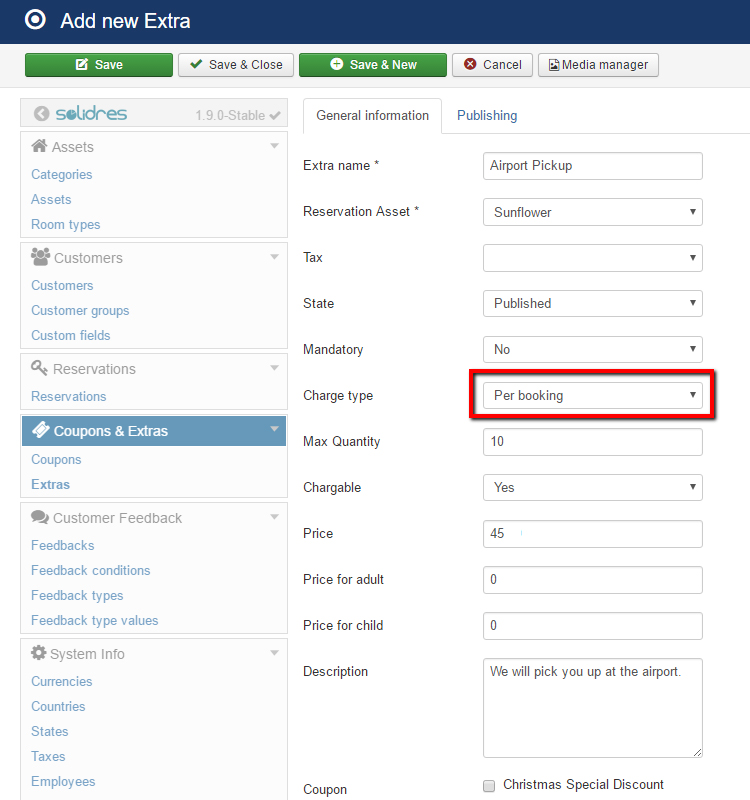
Official Solidres documentation image: “How to configure Extra.” Downloaded for this guide; see source and attribution.
Verify the result
- Test one booking for each affected room type and party size.
- Confirm the item is offered at the intended reservation step and has the correct multiplicand: booking, room, stay, person, or night/day.
- Verify the booking confirmation, reservation record, invoice, and payment total match the intended free/paid and tax treatment.
- If using Advanced Extra, test its stock, availability, and per-date restrictions separately before publishing.
Avoid changing a live extra in place
Editing a price or charge type can affect new quotations immediately. For a materially different service or seasonal offer, create a new extra and unpublish the old one at the agreed time after checking outstanding reservations.
For every charge type and its calculation, see the official Extra configuration guide.