Update rates, seasons and minimum-stay rules
Before you change a rate
- Write down the room type, selling period, new price, currency, minimum stay, and channel impact.
- Check for overlapping rate plans, promotional rates, and existing bookings before editing.
- Make the change during an agreed low-risk window if it affects live channels.
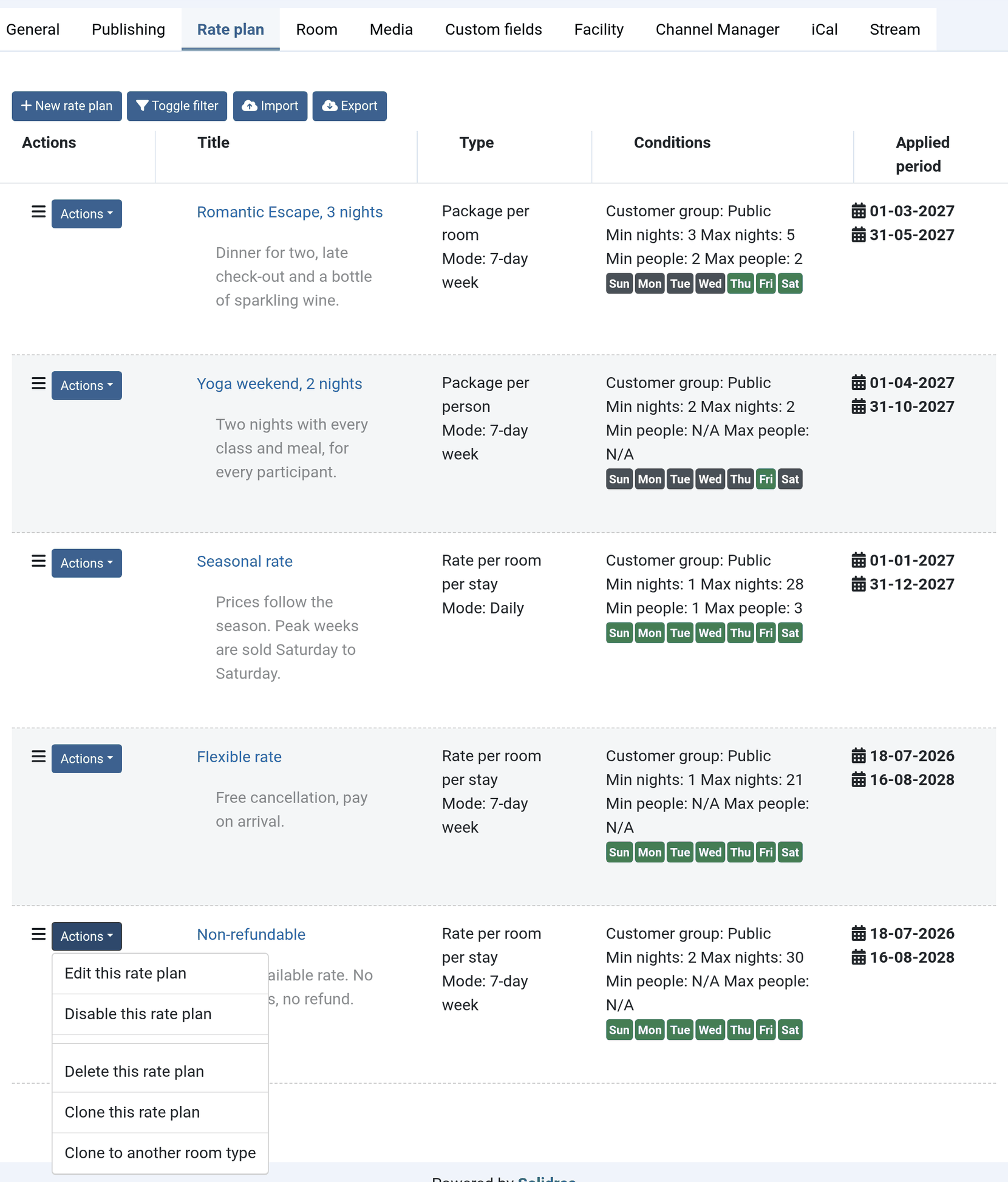
Official Solidres documentation image: “Rate plan list inside the room type.” Downloaded for this guide; see source and attribution.
Update an existing plan
- Open the correct room type and Rate plan tab.
- Identify the applicable plan by title, validity dates, conditions, and status. Do not edit a similarly named plan without checking all four.
- Edit the price grid and restrictions. For seasonal/event prices in Daily mode, use the Quick tool only after checking its date range.
- Save, then verify the plan remains enabled and its Valid from/Valid to dates cover the intended guest stay.
- Run a front-end availability search for representative dates and occupancy. Confirm the intended rate appears and the total is correct.
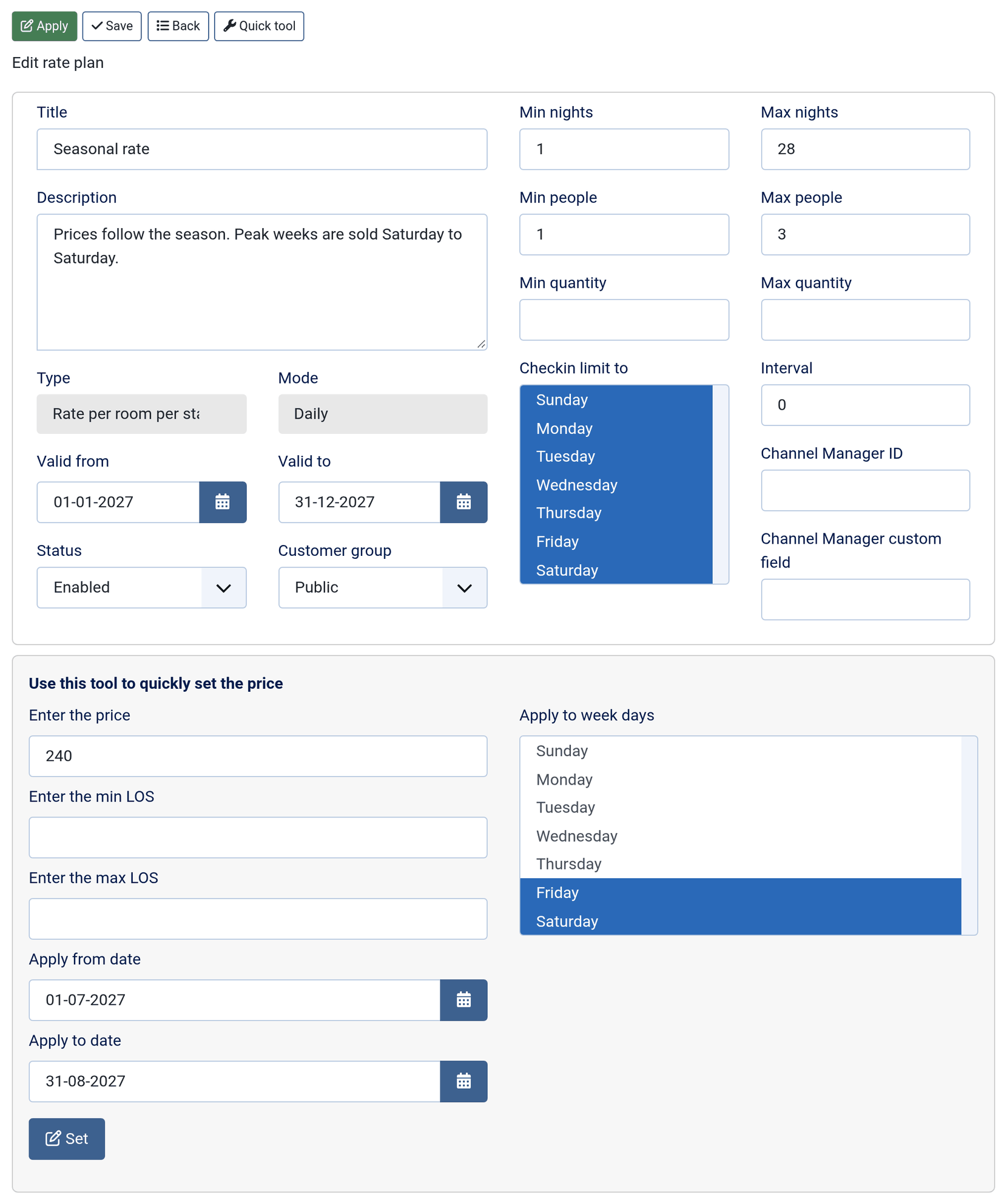
Official Solidres documentation image: “Daily mode Quick tool.” Downloaded for this guide; see source and attribution.
Important rules
- A rate plan must be enabled and cover the guest’s whole stay; consecutive plans are not combined to price one stay.
- With Rate Plan enabled, ensure every bookable room type has an enabled advanced rate plan. The standard rate is ignored for search.
- Run a direct front-end availability search after every material change; Solidres is the source of truth for current rates and availability.
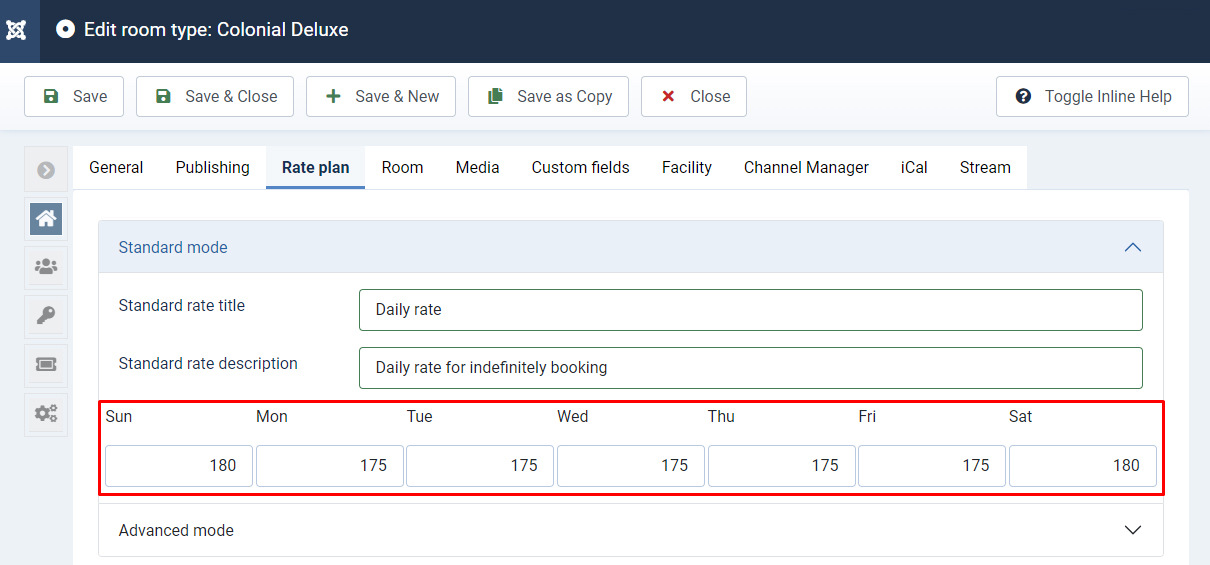
Official Solidres documentation image: “Standard mode: one price per weekday.” It is included for orientation; this guide uses the Rate Plan plugin rather than legacy Complex Tariff.
For detailed pricing modes and conditions, see the official Rate Plan documentation.